FAQs - Frequently Asked QuestionsUpdated 8 months ago
How do I re-render shows?
- While within the scene editor, click the "Save and Render" button (
 ) - this will open the render menu.
 - Click the "Start Render" button (
 ) - this will start the render process.
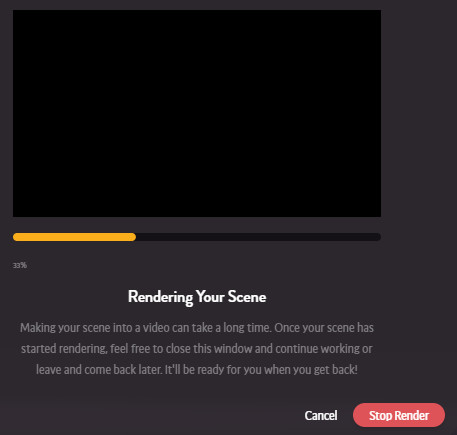
 - Your scene will render, showing the progress during this process.
 During this process you can close the progress page and continue reviewing the scene in the editor or leave the page entirely. Once the process has begun, our servers take care of the rest so you don't have to worry. Note: For each minute of length in the show, you can expect the render to take a few extra minutes.
Do I need to calibrate my audio device?
No, you do not need to calibrate your audio device- though it will show no calibrations within the system, this is by design.
Do I need to Recalibrate my Device?
Though you may see the option recalibrate your device, do NOT recalibrate your system without direct confirmation from Luxedo's support team.
Can you create multiple log-ins for one account?
Unfortunately, as of right now there is no way to create multiple log-ins for one account/school. All of the information must be contained in a single account.
When should I power on the system?
In general, it is advisable to "Wake" the system up well in advance of any games you have planned in a day. By default, your projector timeout should be set to 180 minutes, which means that if you wake the devices any time within 3 hours of the game, you will be able to seamlessly start the show.
Can I use a separate snapshot for different sports?
Yes, it is possible to use a different snapshot for different sports, but please contact [email protected] before doing so, as this is best done with direct oversight from the Luxedo Team