
Troubleshooting your Luxedo Court SystemUpdated 8 months ago
How to Troubleshoot your Luxedo Court System
Though unlikely, it does happen on occasion that one or more of the Luxedo projection systems behaves unexpectedly, and knowing how to react when that happens is crucial. In this article, we will talk through the important steps for identifying and addressing any potential issue that could occur.
The Device is Showing as "Offline"
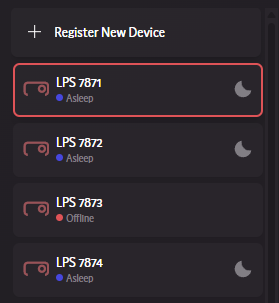
The most common issue, and the one that may look the scariest at face value, is when a system shows up as "Offline", such as the image to the left here. In these case, there's a few different potential causes, but here are the steps to follow in order:
1. Power Cycle via Circuit Breaker
Doing a clean power cycle using a power breaker is the best way to get a system back up and running. 9/10 times, this is the solution to the problem at hand.
2. Verify that the system is still plugged in correctly.
If the system is plugged in correctly, then you should see a total of 3 lights. One on the projector itself, a red LED on the side of the system and a green/yellow light on the ethernet port. If you cannot see these lights from the floor, then check to see if the projector's bulb lights up when the breaker is flipped.
If the bulb does not come on, it means the projector itself is not receiving power- either you need to plug the system in again, or you need to verify that its receiving power from its source. Going into a lift and verifying all of the cords are plugged in correctly is recommended at this stage.
3. Verify the Network is Correct
If the projector itself is on but the other lights do not appear to be on, have your network administrator verify that that the Luxedo system in question is recognized by the network, and if it isn't confirm that all of the network configurations outlined here are correctly set up.
My Group is not Fully Connected!
Under your group settings, you should have access to a diagram that looks like this:
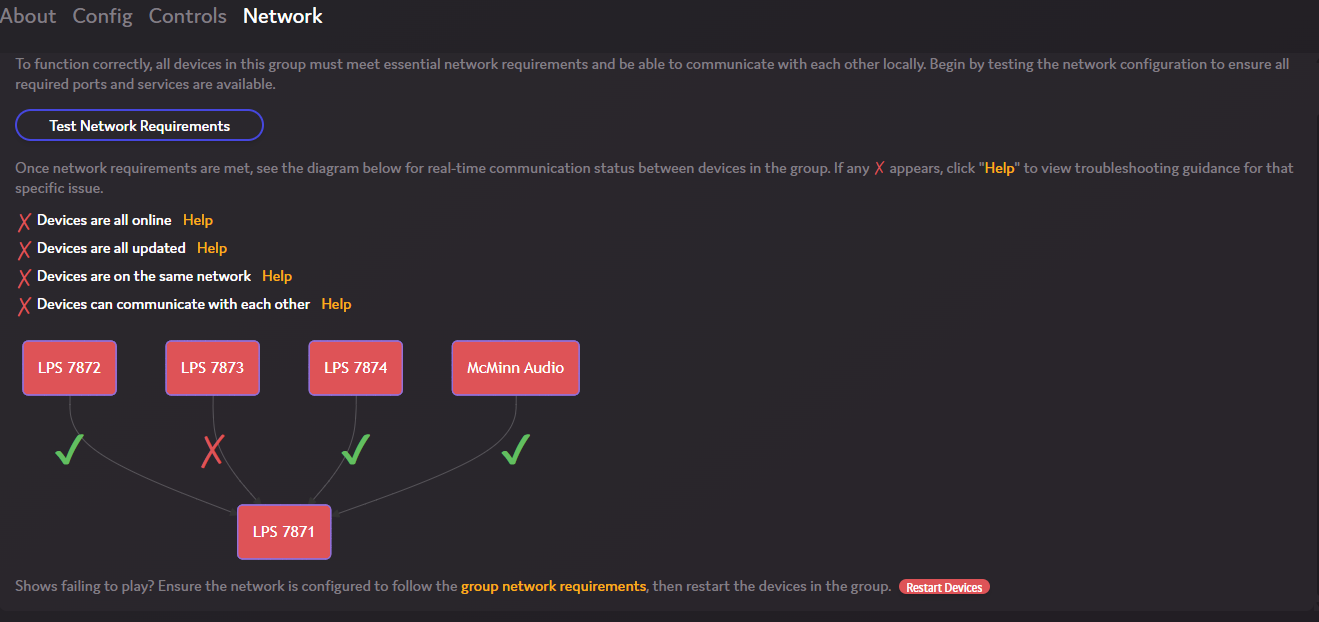
This is a quick display that shows the current status being reported by each device. This is an extremely useful tool for troubleshooting, and offers valuable insight. In this case, this is the same system where one of the devices is registering as offline, so it fails the very first test, but there are a few other things that can be causing problems.
1. All Devices are Fully Updated
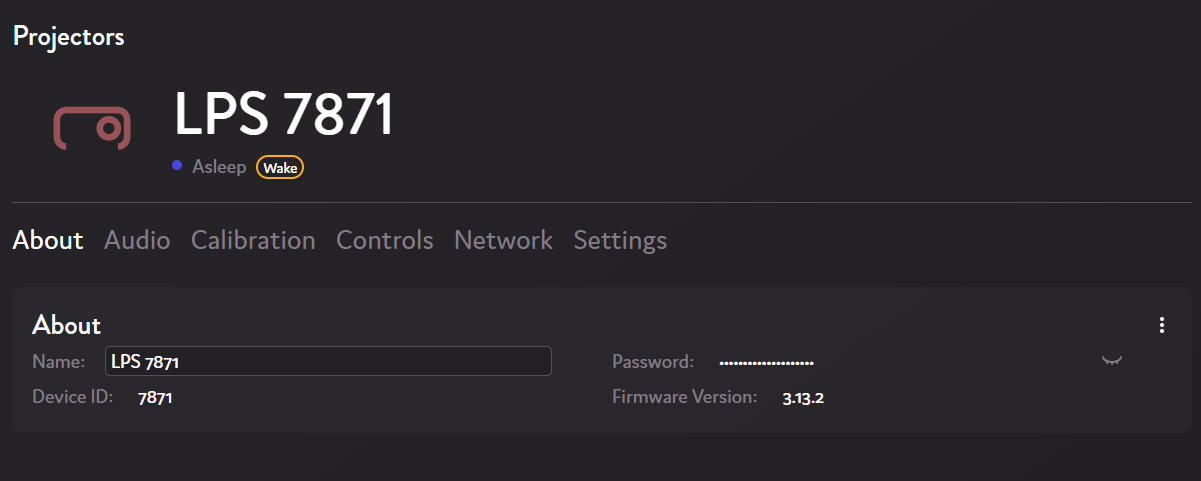
If the devices are not on the same firmware version this will likely lead to communication problems that could interrupt your ability to play back a show, you can verify the version each system is on by going to their about tab:
2. Device are all on the same network
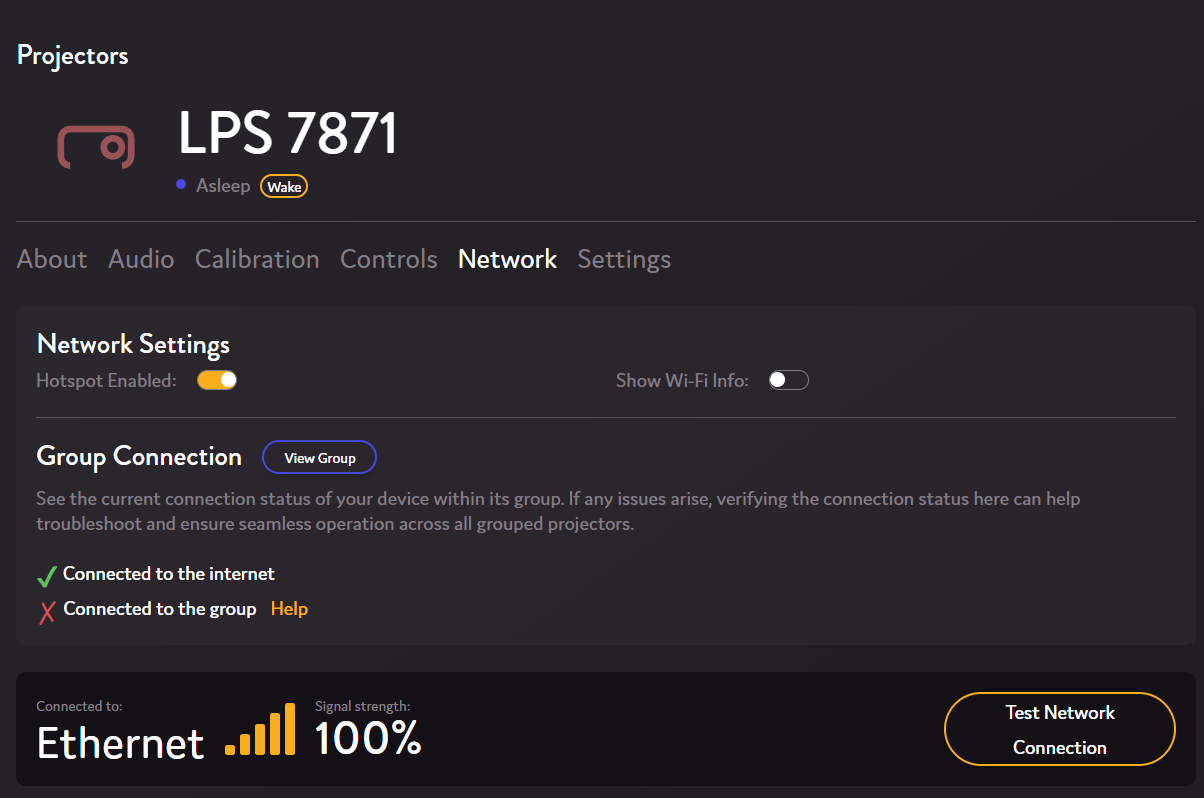
This should not be a problem so long as the ethernet is connected, but on a occasion if an ethernet cable is disconnected or an audio device is not set up correctly the device can connect to another network. The way to check this is by going to the network file, where you should see "ETHERNET" - 100%
3. Devices can Communicate with Each other
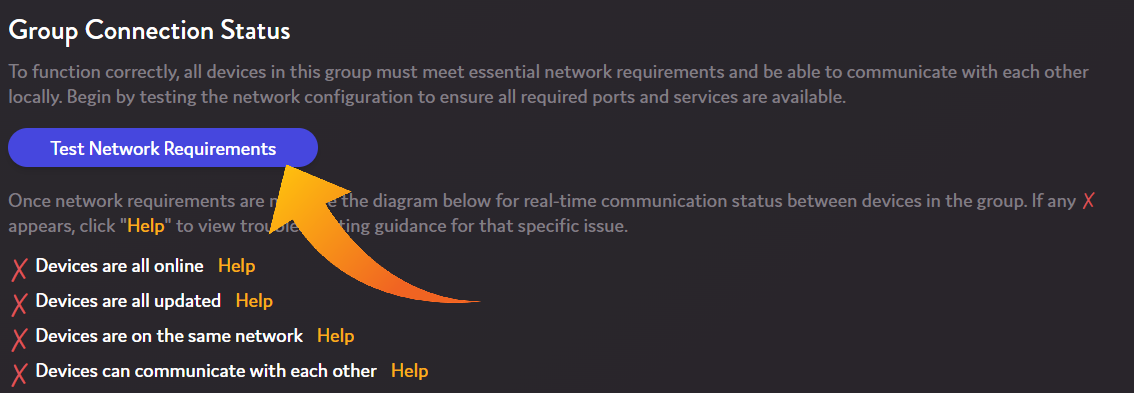
This is the final barrier to the devices ability to communicate, and it comes down to the network configurations again. You can run a network test by clicking the button highlighted here and it will check to see which network configuration is providing the roadblock. From there, have your network administrator review the network configurations and make sure everything is configured correctly.
Audio Device is Offline
Unlike the projectors up in the rafters, it is possible for someone to interfere directly with the audio device, and that means that it occurs on occasion that someone misplaces or unplugs the system without letting the right people know. In these cases, you need to make sure the system is plugged back in accordingly. You can do so by following the guide below:
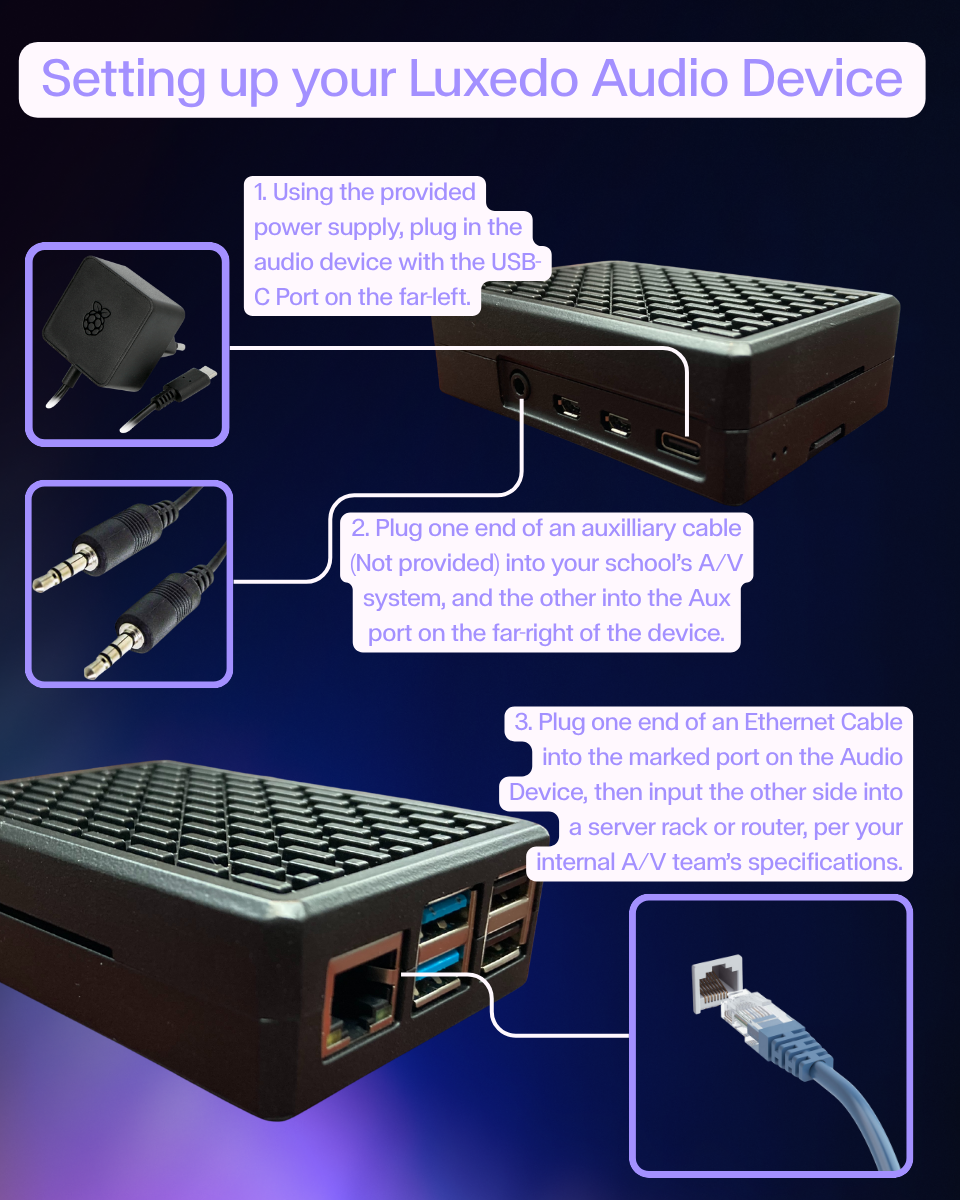 Newest Model of Audio Device
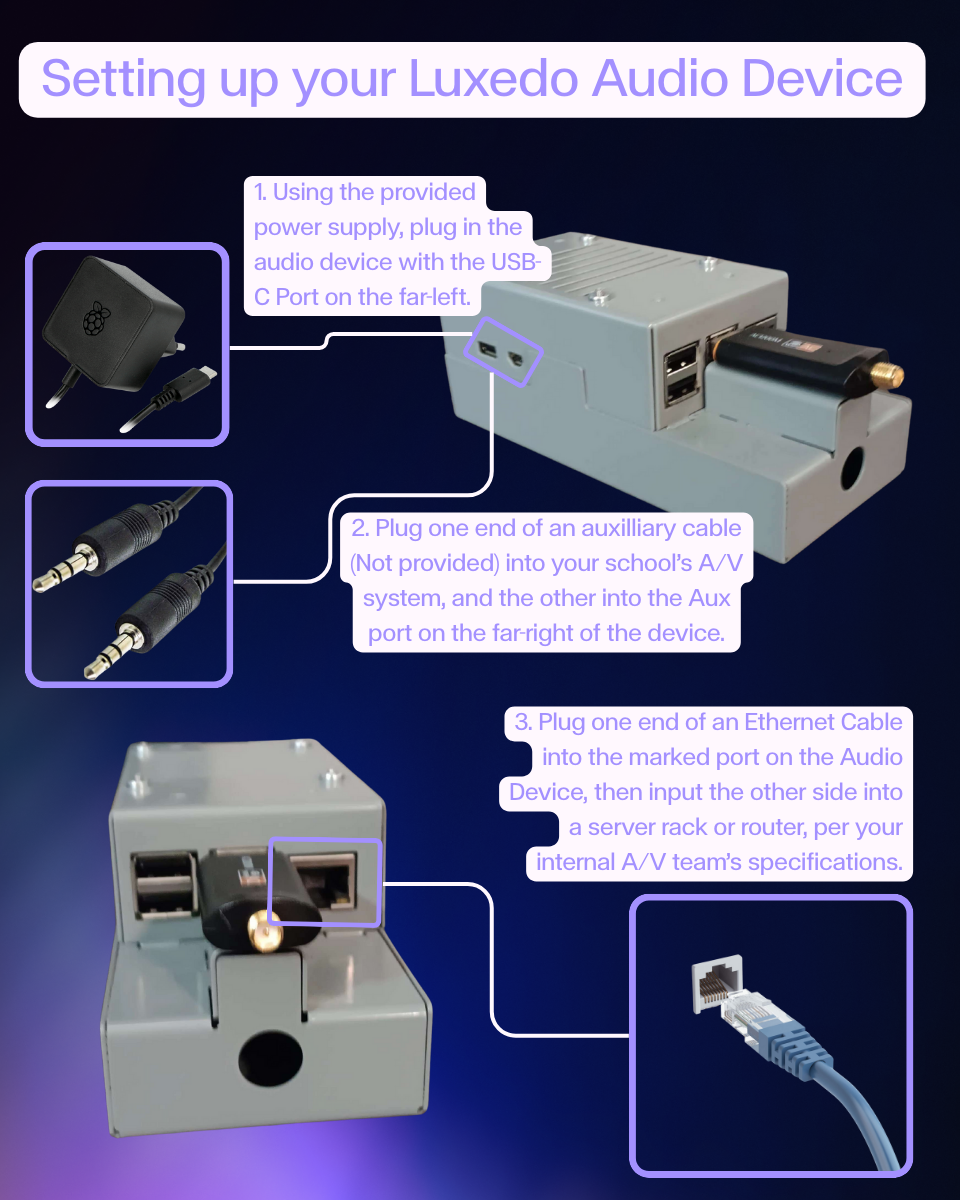 Legacy Model of Audio Device